
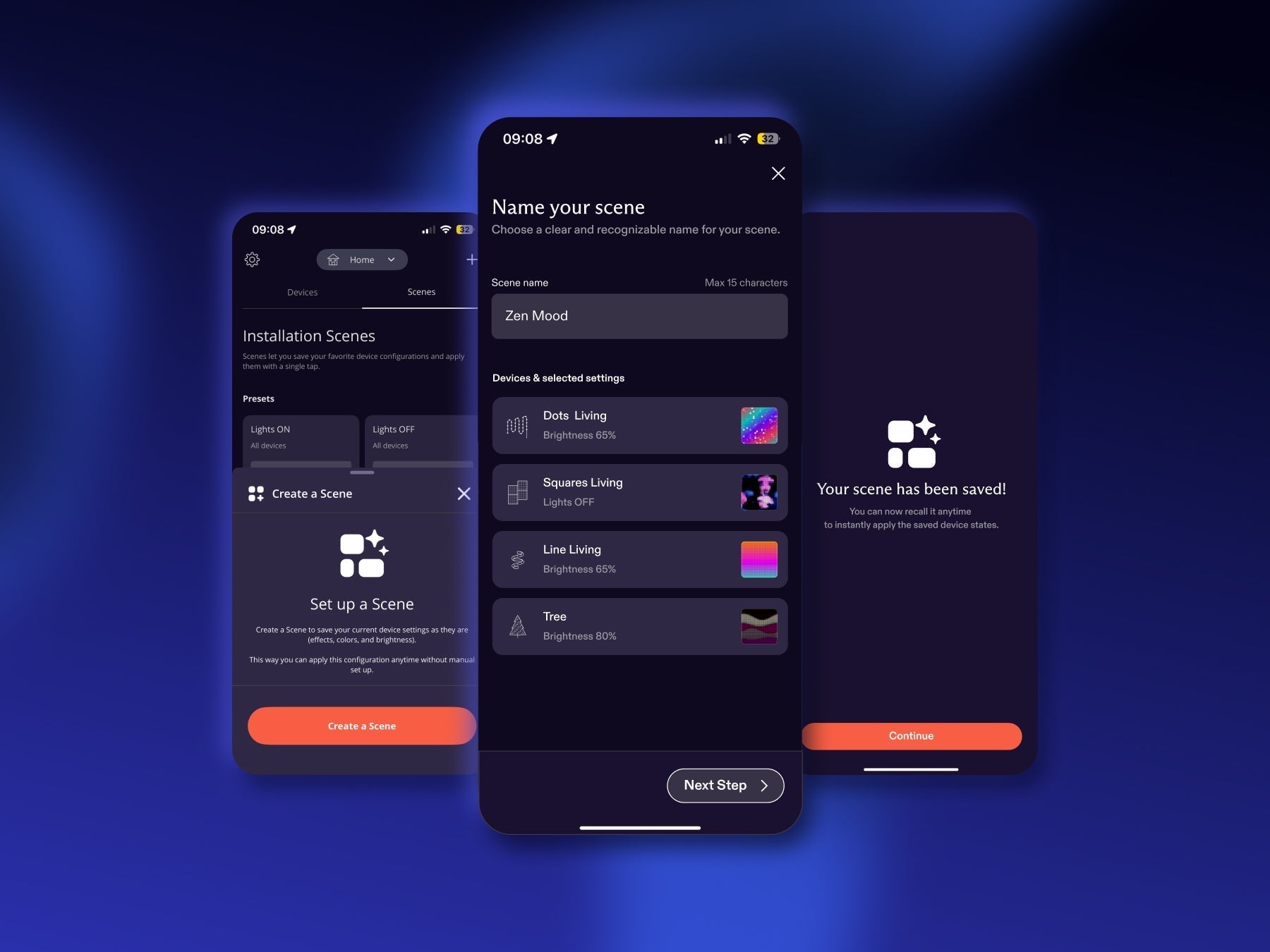
The last year has brought updates to the Twinkly app designed to make it easier than ever to manage and personalize your Twinkly smart lights. Installations let you manage multiple devices within a single area and Effect sharing opened a world of possibilities to share your custom creations with other Twinkly users via link. Now, meet Scenes, the latest feature in the Twinkly app designed to give you complete control of your home lighting, changing any ambience with a single command.
What are Twinkly Scenes?
With Scenes, you can save and recall your favorite settings across multiple lights in an Installation in an instant. You choose the effect, color, and brightness of each Twinkly light in your Installation and the app saves a snapshot of your settings, so all the lights in one space transform simultaneously.
Whether it’s for daily living, entertaining guests, or a cozy movie night, your perfect lighting setup is ready. Create up to 20 personalized Scenes to fit every mood, occasion, or room – from “Movie lights” to “Christmas mood”.
Change your Twinkly lights with voice control like never before with Amazon Alexa and Hey Google. Save your favorite effects and settings into Scenes so they can be played with a simple request. Just tell your voice assistant to turn on a Scene and watch your lights follow the command.
Your favorite Scenes can also be included in your routine: Create the perfect setups and watch them run automatically with Alexa Smart Home or Google Home, whether it’s to start your day, for when you come home, a relaxing movie night or entertaining guests.
Ready to create your first Scene? Here's how

With Twinkly, personalizing your lighting setup is effortless. By tapping the Devices tab in the Twinkly app, then selecting Scenes, you’ll find a quick and easy setup process waiting for you.
There are two defaults ready for use:
- Lights ON – restores all lights in the installation to their last known settings
- Lights OFF - turns off all lights in the installation
To create a personalized Scene for your space, first set all of your Twinkly lights to the desired settings and tap Create a Scene. Select the devices you want to include and make sure to give your Scene a memorable name.
Updating the Twinkly app is all it takes to start creating Scenes. Elevate your home decoration and enjoy the revolutionary personalization available from Twinkly smart LED decoration.
Share:
Unveiling Twinkly 2025 Christmas Portfolio
Twinkly Permanent Outdoor Lights