
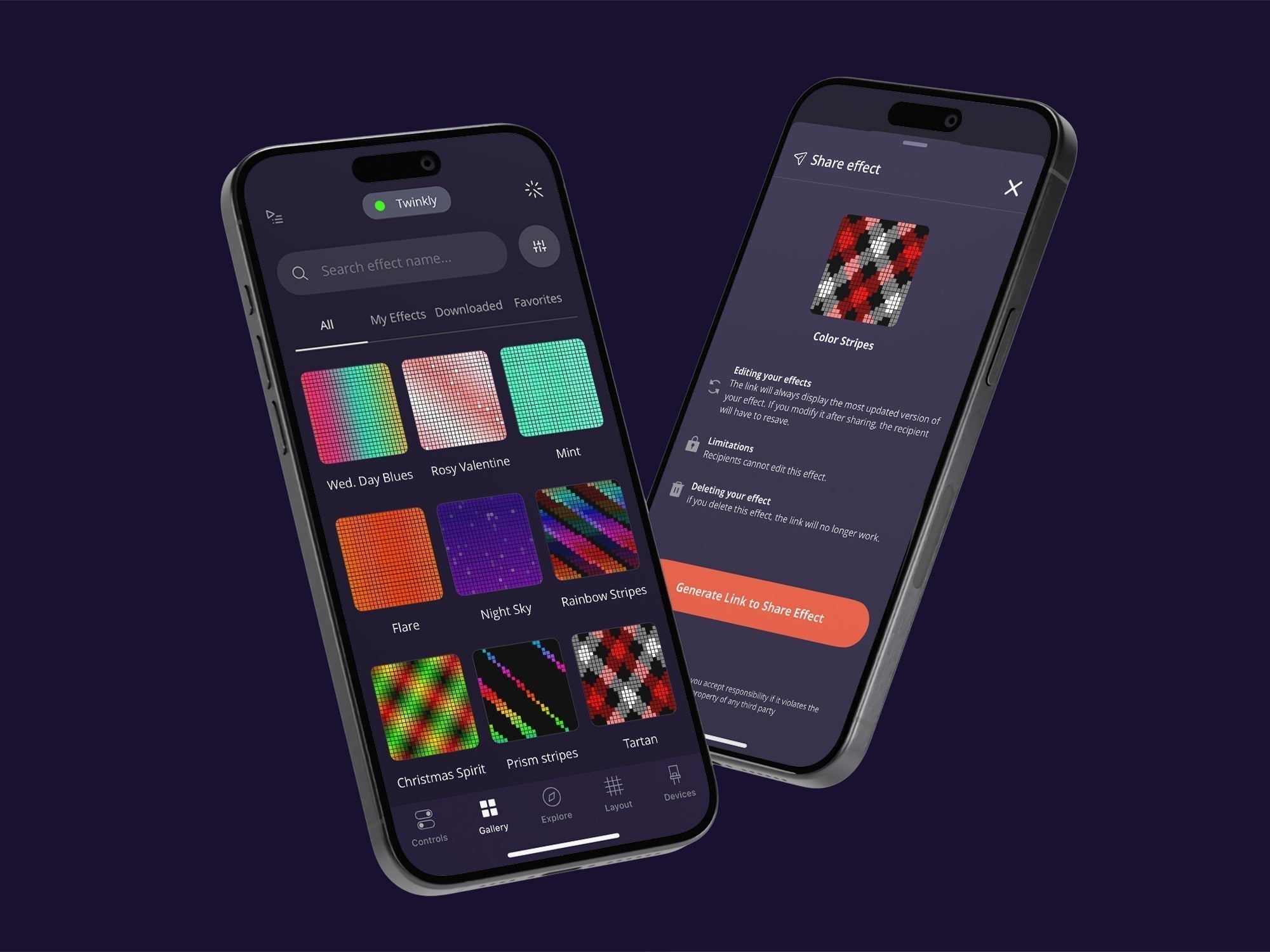
Ontdek een nieuw niveau van community en organisatie met de Twinkly-app dankzij game-changing nieuw functies ontworpen om laat je je aangepaste effecten met andere Twinkly-gebruikers sneller bladeren en effecten vinden, en sla je effecten op al je apparaten op.
Hier is een korte blik op wat is nieuw in de nieuwste Twinkly-appupdate:
-
Delen – Verstuur uw effecten (of aangepast)gewoeld met de effecteneditor of gemaakt in de FX Wizard) aan vrienden of de Twinkly-community.
-
Uitvouwen – Ontdek en download nieuw effecten van anderen.
-
Organiseren – Bladeren slimmer using tabbladen, filters, en a zoeken bar.
-
Synchroniseren – Toegang tot je volledige galerij op al je apparaten.
Lees verder voor meer details en instructies over het gebruik van deze functies.
Effect delen: Geweldige effecten zijn om te delen
 Wat is er nieuw
Inspireer en verbind met andere Twinkly-gebruikers door je aangepaste ontwerpen en animaties te versturen voor download. Je kunt nu deelbare links genereren voor elk effect dat je zelf hebt gemaakt of bewerkt.
How it works
Kies een effect om te delen: Wanneer je een effect bekijkt dat je hebt gemaakt of aangepast, zie je het pictogram "delen" onderaan je scherm. Tik op het pictogram om de deel-link te genereren. De deelfunctie werkt ook met GIF's.
Deel een link: Kopieer de link en stuur deze via chat, e-mail of sociale media naar een vriend of een Twinkly-gebruiker.
De gebruiker ontvangt een snapshotkopie van jouw effect in hun galerij. Om eventuele wijzigingen die je daarna aanbrengt te zien, moet de gebruiker het effect opnieuw downloaden. De gebruiker kan het effect verwijderen, maar kan het niet bewerken, kopiëren of opnieuw delen.
De link die je verzendt verwijst altijd naar de meest recente versie van je effect. Als je het effect bijwerkt en delen actief houdt, ziet je vriend het geüpdatete ontwerp wanneer hij opnieuw op de link klikt.
Je kunt delen op elk moment uitschakelen of het effect verwijderen, waardoor de link ongeldig wordt.
Ontvang nieuwe effecten: Groei je galerij

Wat is er nieuw
Vergroot je Effectengalerij met een wereld aan stijlen van de creatieve community van Twinkly. De deellink geeft je een voorbeeld van het effect voordat je het kunt downloaden en opslaan in je galerij.
Hoe het werkt
Klik op de deel-link: Zodra een link met je is gedeeld (via chat, e-mail of sociale media, bijvoorbeeld), open je deze op een apparaat dat je gebruikt om je Twinkly‑verlichting te bedienen.
De link opent de app en toont een voorbeeld van het gedeelde effect zodat je precies weet wat je toevoegt. Download het effect om het op te slaan in je galerij.
Als u het effect na het opslaan niet kunt zien, zorg er dan voor dat het Twinkly-apparaat waarop u het gebruikt hetzelfde kleurprofiel heeft – bijvoorbeeld: een meerkleurig effect verschijnt niet in uw galerij als u een Silver & Gold-editie van Twinkly-verlichting gebruikt.
Heb je de Twinkly-app nog niet? Geen probleem! Wanneer iemand een effectlink met je deelt, opent tikken op de link een landingspagina. Vanaf daar word je begeleid bij het downloaden van de Twinkly-app. Probeer de link opnieuw om deze te bekijken en op te slaan in je Effectengalerij.
Persoonlijk exemplaar: Zodra gedownload, wordt het effect opgeslagen in je Downloaded-tab (lees verder om de nieuwe tabfuncties in de Effects Gallery te zien). Je kunt het niet bewerken, maar het kan wel worden verwijderd.
Als de maker hun versie van het effect bijwerkt, blijft degene die je hebt gedownload ongewijzigd tenzij je opnieuw op de link klikt om de nieuwe versie te krijgen.
Personaliseer je weergave: Een slimmere galerij met tabbladen, zoekfunctie en filters

Wat is er nieuw
Vind effecten sneller met de bijgewerkte Effects Gallery, herontworpen voor soepelere navigatie en directe organisatie. Filters, sorteermogelijkheden en een zoekbalk maken het wisselen en bladeren door effecten snel, eenvoudig en intuïtief.
Hoe het werkt
Gebruik de filtertabbladen om alleen geselecteerde effecten te bekijken:
- Alles – Toont alles waar u toegang toe hebt: standaardeffecten, uw eigen effecten, downloads en gedeelde effecten.
- Mijn effecten – Je eigen aangepaste creaties of aangepaste effecten.
- Gedownload – Effecten die je hebt toegevoegd uit de Store of via gedeelde links.
- Favorites – Jouw zorgvuldig geselecteerde favorieten gemarkeerd voor snelle toegang.
De zoekbalk laat je de naam van het effect of een deel ervan typen om direct te vinden wat je nodig hebt.
Sorteringsopties stellen je in staat effecten te ordenen van Meest recent → oudste, Oudst → meest recent, Alfabetisch (A → Z).
Om alles duidelijk en soepel te houden, blijven filters tijdens je sessie actief totdat je naar een ander Twinkly-apparaat overschakelt, het lay-outtype wijzigt, uitlogt of de app opnieuw start.
Multi-device synchronisatie: Je effecten, overal waar je inlogt
Wat is nieuw
Effecten worden nu opgeslagen in uw Twinkly-account, niet alleen op uw apparaat.
Hoe het werkt
Waar je ook inlogt, je hele galerij gaat met je mee, of het nu een telefoon, tablet of een nieuw apparaat is.
Voor meer informatie, klik hier om bekijk de Twinkly hulppunt.
Delen:
Lancering van het Twinkly Kerstportfolio 2025